Development#
This chapter describes how to set up icalendar for development and to contribute changes.
Set up your environment#
Unless you're a maintainer or administrator, you don't have write access to push commits to GitHub repositories under the Collective organization or the icalendar repository. You can, however, push commits to your fork. Thus, a typical workflow will be circular in nature. You'll pull code from the upstream icalendar repository, push your work from your local clone to your remote fork, then make a pull request from your fork to the upstream icalendar repository.
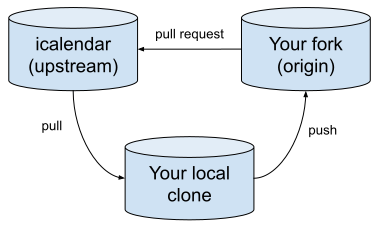
Start by forking icalendar's repository to your account through the GitHub interface.
See also
Configure Git to sync your fork with the upstream repository.
Branches#
This section describes the branches used in icalendar development.
mainThe main branch receives the latest updates and features. Active development takes place on this branch. It is compatible with Python versions 3.10 - 3.14, and PyPy3.10.
6.xicalendar version 6 is on the branch 6.x. It is compatible with Python versions 3.8 - 3.13, and PyPy3.9. Security updates and bug fixes can be backported and added to
6.xon request.5.xicalendar version 5 is on the branch 5.x. It is compatible with Python versions 3.7 - 3.11, and PyPy3.9. Security updates and bug fixes can be backported and added to
5.xon request.4.xicalendar version 4 is on the branch 4.x. It is compatible with Python versions 2.7, 3.4 - 3.10, and PyPy2.7 and PyPy3.9. Security updates and bug fixes can be backported and added to
4.xon request.
See also
Install Python#
You will need a version of Python installed on your system to run the tests and execute the code. The latest version of Python 3 should work and will be enough to get you started. If you like to run the tests across multiple Python versions, then the following setup process should work the same.
Install tox#
First, install tox.
pip install tox
From now on, tox will manage Python versions and test commands for you.
pre-commit#
pre-commit is automatically installed as one of the development requirements when running the following command.
make dev
That command installs a supported Python, creates a Python virtual environment, and installs package and development requirements.
When you commit code to icalendar with git commit, pre-commit runs the following code quality checks and reformats code automatically for you.
- debug-statements
Checks for debugger imports and Python 3.7+
breakpoint()calls in Python source code.- ruff check --fix
Runs the Ruff linter on Python files and fixes issues according to the configuration in
pyproject.toml.- ruff format
Runs the Ruff formatter on Python files and fixes issues according to the configuration in
pyproject.toml.
The configuration file for pre-commit, .pre-commit-config.yaml, is located at the root of the repository.
Contributors to icalendar are encouraged to use pre-commit. Any issues that would be caught by pre-commit shall be caught by GitHub workflows when you push commits to a pull request for icalendar. This could delay merging of your pull request.
However, you may opt out of using pre-commit.
You can use the --no-validate flag for the git commit command.
git commit -m "My commit message" --no-validate
Alternatively, configure your editor to use --no-validate for all commits.
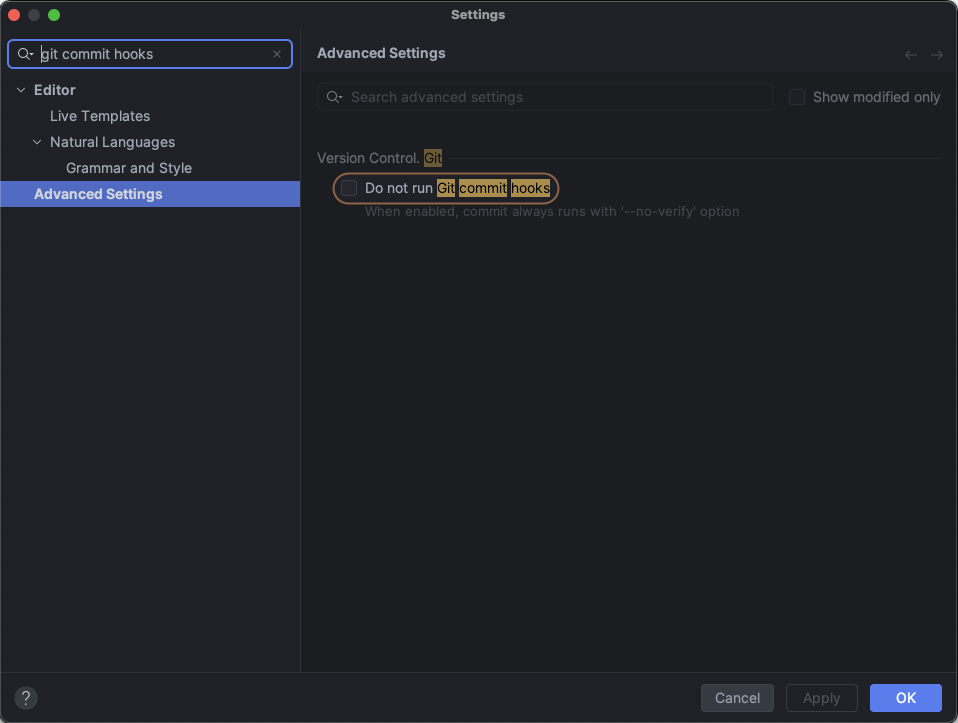
The screenshot below shows how to configure PyCharm to disable pre-commit by searching for "git commit hooks" in its settings.
Run tests#
tox manages all test environments in all Python versions.
To run all tests in all environments, run the command tox.
tox
You might not have all Python versions installed or you may want to run a specific one. The following command show how to run tox with Python 3.12:
tox -e py312
See also
tox's documentation.
Code format#
icalendar strives towards a common code format. You can run the following command to automatically format the code.
tox -e ruff
Code conventions#
icalendar has adopted code conventions to help make its code more legible and understandable.
Internal use only#
There are no truly private methods in Python.
However, icalendar follows the PEP 8 Python style guide regarding the use of a single leading underscore character _ to the object as "internal use only."
"Internal use only" methods and variables are not part of icalendar's public API, and developers should not use them in their code. These are implementation details that may change without notice.
In addition, "internal use only" objects are not displayed in the documentation. Their docstrings, of course, remain in the Python source code.
Type hints#
Type hints in Python help developers catch errors early, improve code documentation, and enhance the functionality of IDEs and linters. icalendar uses type hints, and supports rendering them in its reference API documentation.
icalendar was originally written before the existence of type hints in Python. As such, there are many Python objects in the code base that lack type hints. The icalendar team welcomes contributions to add type hints.
When the type hints in the standard library are not sufficient, you can use subtyping through protocols.
The following example demonstrates subtyping through the usage of a protocol and a method using a literal ellipsis ... to indicate that the method signature exists, but the implementation details aren't necessary.
class HasToIcal(Protocol):
    """Protocol for objects with a to_ical method."""

    def to_ical(self) -> bytes:
        """Convert to iCalendar format."""
        ...
See also
GitHub issue Add type hints
Python standard library
typing
Activate a tox environment#
If you'd like to activate a specific tox virtual environment, use the following command, replacing the Python version accordingly.
source .tox/py312/bin/activate
Install icalendar manually#
The best way to test the package is to use tox as described above.
However, if you can't install tox, or you'd like to use your local copy of icalendar in another Python environment, this section describes how to use your installed version of Python and pip.
cd src/icalendar
python -m pip install -e .
The above commands install icalendar and its dependencies in your Python environment so that you can access local changes.
If tox fails to install icalendar during its first run, you can activate the environment in the .tox folder and manually set up icalendar as shown above.
To verify installation, launch a Python interpreter, and issue the following statements.
Python 3.12.0 (main, Mar  1 2024, 09:09:21) [GCC 13.2.0] on linux
Type "help", "copyright", "credits" or "license" for more information.
>>> import icalendar
>>> icalendar.Calendar()
VCALENDAR({})